How to Set Up Reportr in Under 5 Minutes: Complete Setup Guide
Learn how to set up Reportr for automated SEO reporting in under 5 minutes. This step-by-step guide shows you how to connect Google Search Console, GA4, and PageSpeed Insights with no technical skills required.
How to Set Up Reportr in Under 5 Minutes
Setting up professional SEO reporting shouldn't take hours of technical configuration. Most agencies waste an entire afternoon fumbling through API documentation, OAuth settings, and complex integrations just to generate their first report. With Reportr, you can go from signup to your first branded SEO report in under 5 minutes – no technical skills required.
This guide walks you through the complete white label seo reports setup process, from creating your account to generating your first professional report. By the end of these 5 minutes, you'll have automated SEO reporting that pulls data from Google Search Console, Google Analytics 4, and PageSpeed Insights – all wrapped in your agency's branding.
Skip the reading and start your free 14-day trial. No setup fees required.
What You'll Need Before Starting
Before diving into the white label seo reports setup, make sure you have:
Required Access
- •Google Search Console access to your client's website (Owner or Full User permission)
- •Google Analytics 4 property connected to the site (Editor or Administrator role)
- •Admin access to your agency's branding assets (logo, brand colors)
Preparation Checklist
- •Client's domain verified in Google Search Console
- •Your agency logo (PNG format, recommended 400x100px)
- •Brand color hex code (e.g., #7e23ce)
- •5 minutes of uninterrupted time
Most agencies already have GSC and GA4 access for their clients. If you're missing access to a client's properties, request it before starting setup – this is the only potential blocker.
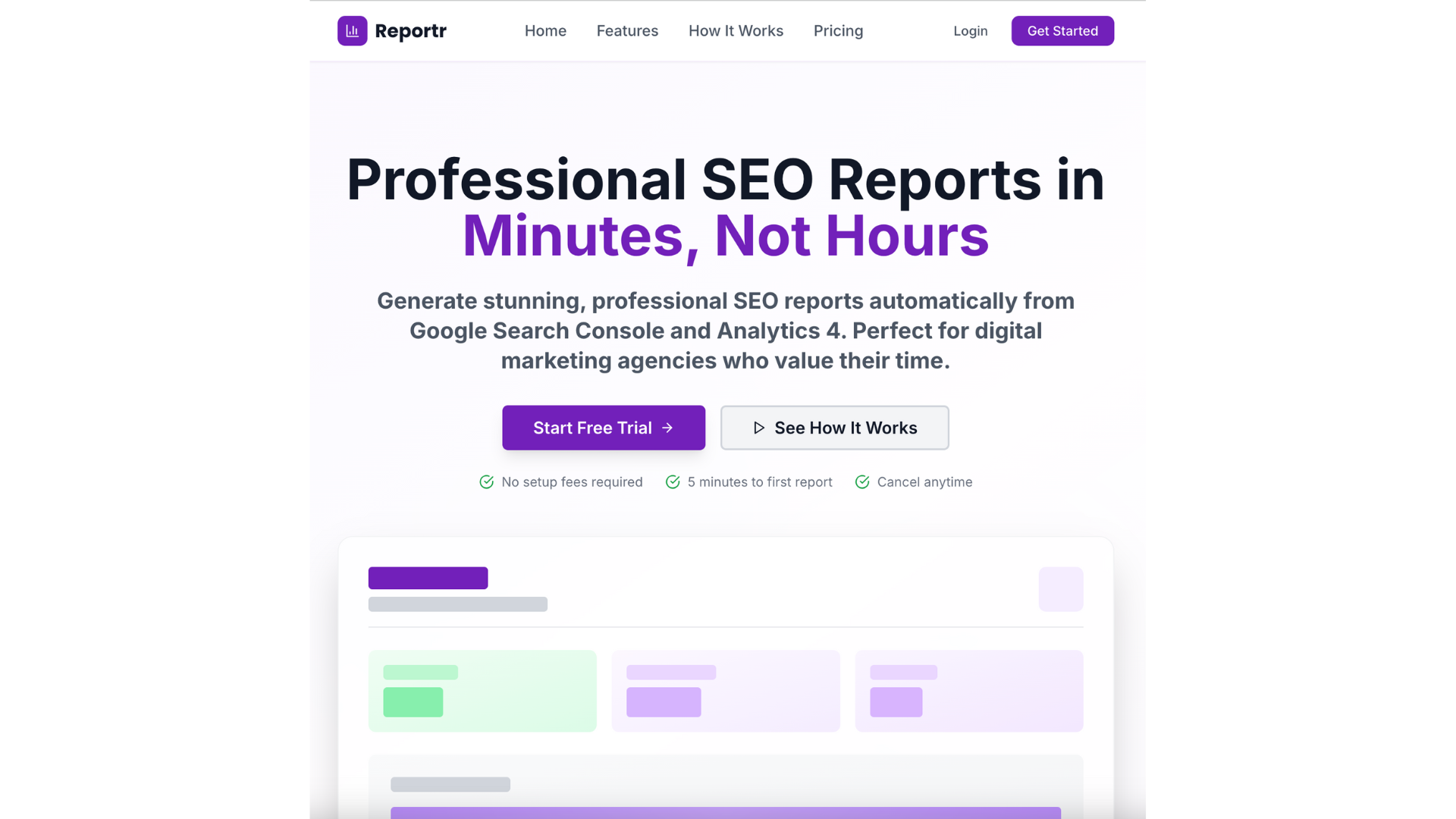
Step 1: Create Your Reportr Account
Getting started with Reportr takes less than 60 seconds thanks to Google OAuth integration.
1. Visit reportr.agency/signin 2. Click "Sign in with Google" 3. Select your Google account 4. Grant necessary permissions (GSC and GA4 access)
Why Google OAuth? This authentication method automatically connects your Google account, making client setup seamless later. You won't need to manually configure API keys, create developer projects, or manage credentials – everything happens automatically.
Plan Selection: Start with the FREE tier (1 client, 5 reports/month) to test the platform. You can upgrade anytime to:
- •STARTER ($29/month)
- •PROFESSIONAL ($99/month), or
- •AGENCY ($99/month). Check our pricing page for detailed comparisons.
Step 2: Set Up Your White Label Branding
Before adding clients, customize your agency branding so every report automatically includes your logo and colors.
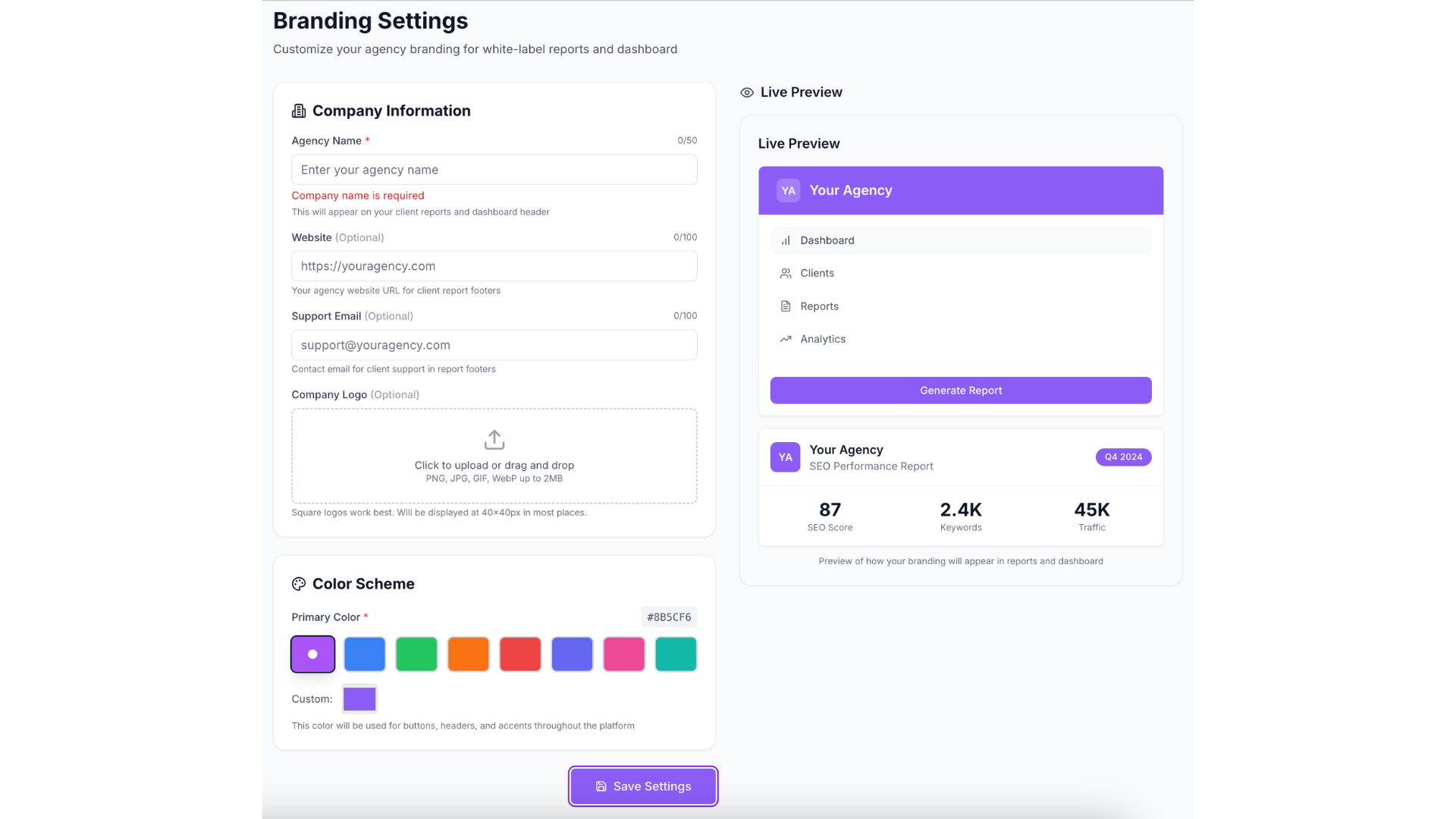
Navigate to Settings → White Label Branding and configure:
Upload Your Agency Logo 1. Click "Upload Logo" 2. Select your PNG file (max 2MB) 3. Preview how it appears on reports 4. Save changes
Logo Specifications:
- •Format: PNG with transparent background
- •Recommended size: 400x100 pixels
- •Max file size: 2MB
- •Displays in report cover
Set Your Brand Colors 1. Enter your primary brand color (hex code) 2. Preview how it affects report styling 3. Reportr automatically generates complementary shades
Your brand color appears in report headers, charts, and accent elements throughout the PDF.
Add Company Information
- •Agency name: Replaces "Reportr" throughout reports
- •Website URL: Included in report footers
- •Contact email: Optional, for client follow-ups
White-Label Pricing: White-label branding is included in all paid plans. Without white-label, reports include a small "Powered by Reportr" badge – perfectly acceptable for testing, but upgrade before sending to paying clients.
Learn more about white-label options on our features page.
Tools like Reportr automate this entire workflow, generating white-label reports in about a minute instead of 8+ hours.
Step 3: Add Your First Client
Now comes the magic – connecting your client's data sources takes less than 2 minutes per client.
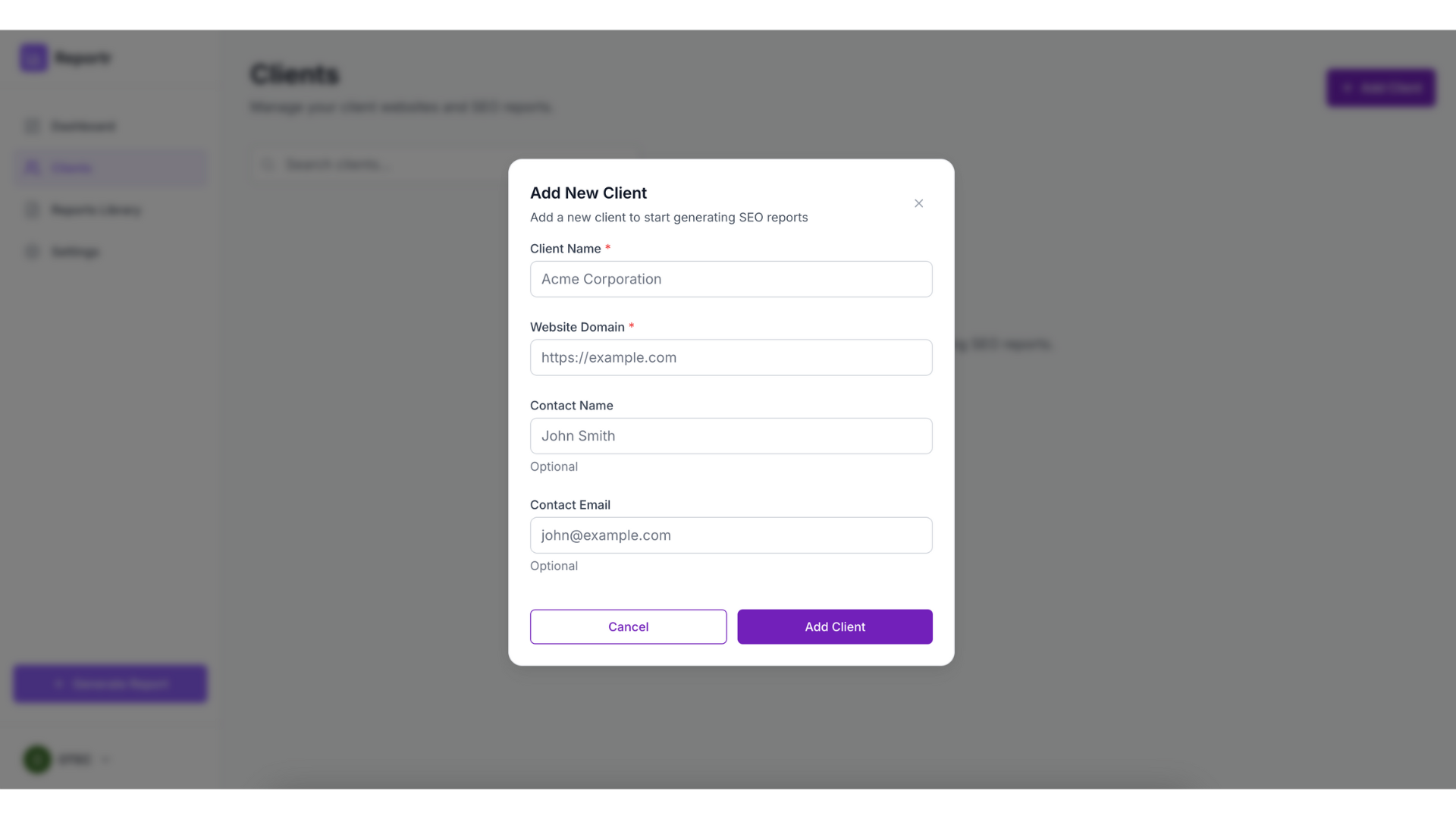
From your dashboard, click "Add Client" and enter:
- •Client name: How you'll identify them (e.g., "Acme Plumbing")
- •Website domain: Their full domain (e.g., "acmeplumbing.com")
- •Contact email: Optional, for your records
Connect Google Search Console
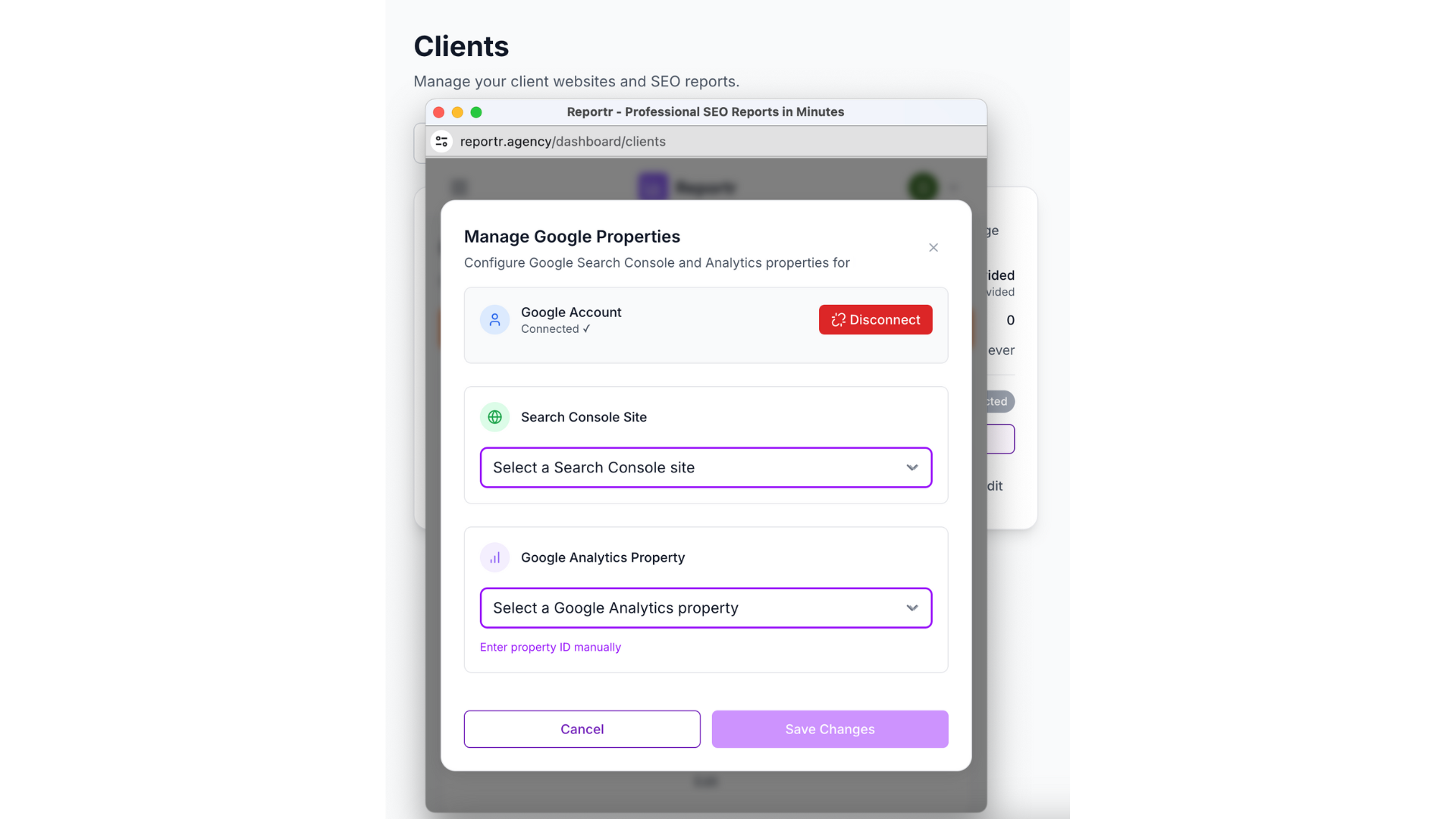
1. Click "Connect Google Search Console" 2. Select the client's property from the dropdown 3. Grant permissions when prompted
Important: You must have "Owner" or "Full User" access to see the client's GSC property in the dropdown. If it's missing, log into Google Search Console and verify your access level first.
What Reportr Pulls from GSC:
- •Total clicks and impressions
- •Average click-through rate (CTR)
- •Average position for all keywords
- •Top 20 performing keywords with individual metrics
- •Top 10 landing pages with traffic data
- •30-day trend charts showing daily performance
Connect Google Analytics 4
Still on the Add Client screen: 1. Click "Connect Google Analytics" 2. Select the client's GA4 property 3. Grant permissions
Why Connect GA4? While GSC shows search performance, GA4 reveals what happens after users land on the site. This includes organic sessions, user behavior, bounce rates, and conversion tracking – essential for comprehensive reporting.
What Reportr Pulls from GA4:
- •Organic traffic sessions and users
- •Bounce rate and engagement metrics
- •Top organic landing pages
- •Device breakdown (desktop/mobile/tablet)
- •Traffic trends and period comparisons
Connect PageSpeed Insights
Reportr automatically fetches PageSpeed Insights data for your client's website – no additional setup required. This includes:
- •Mobile performance score (0-100)
- •Desktop performance score (0-100)
- •Core Web Vitals: Largest Contentful Paint (LCP), First Input Delay (FID), Cumulative Layout Shift (CLS)
- •Top performance opportunities with estimated impact
This technical data helps identify speed issues affecting search rankings and user experience.
Troubleshooting Common Issues:
| Problem | Solution |
|---|---|
| Property not showing in dropdown | Verify GSC/GA4 access permissions |
| "Permission denied" error | Re-authenticate by clicking "Reconnect Google" |
| Multiple properties showing | Select the exact domain matching the website |
| No GA4 property available | GA4 is optional – reports work with GSC alone |
Click "Save Client" when all connections are complete.
Step 4: Generate Your First Report
With your client connected, generating a professional report takes about a minute.
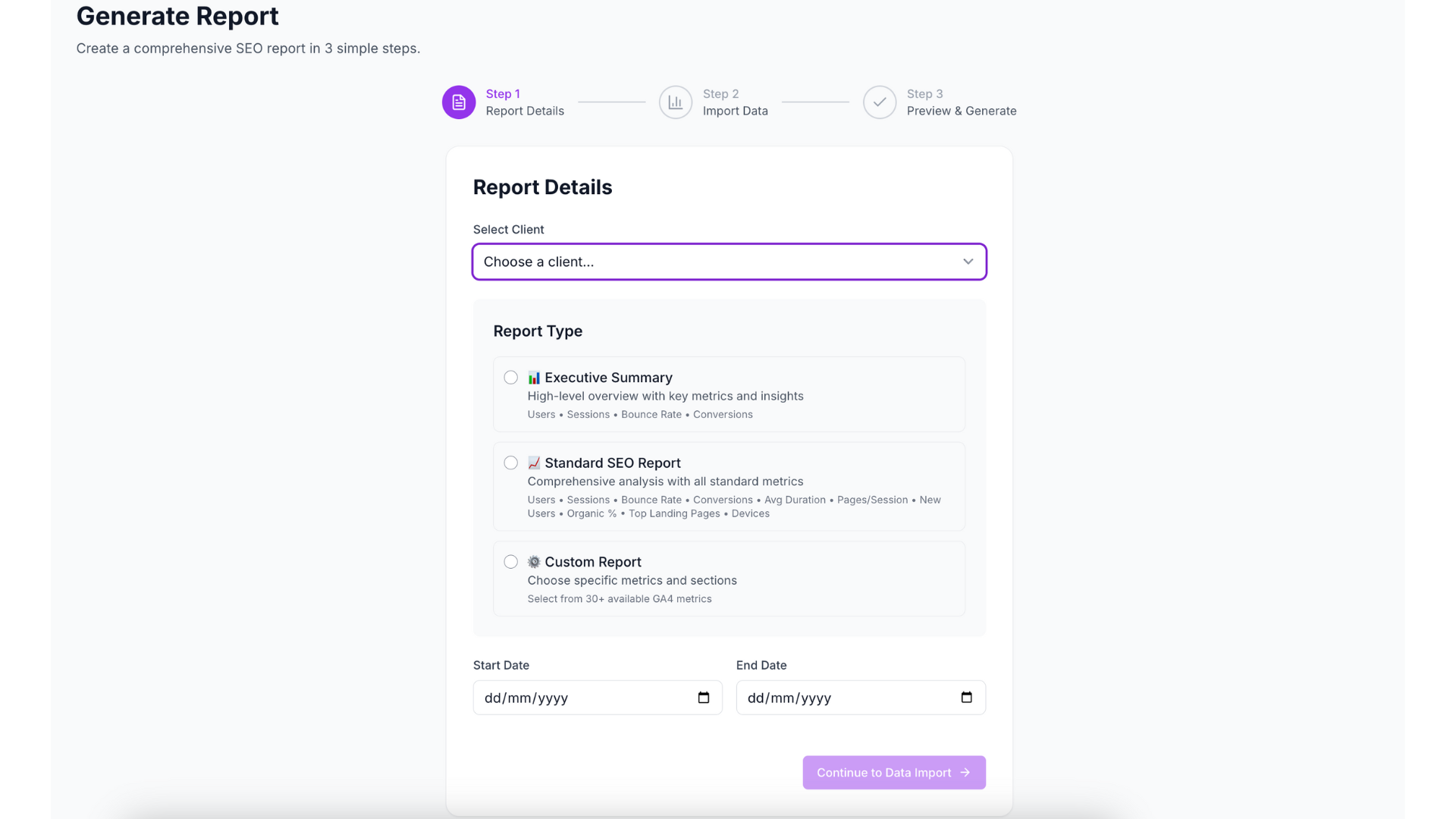
Choose Your Report Type
Reportr offers three report templates:
1. Executive Summary (Best for monthly updates) - 4 key GSC metrics (clicks, impressions, CTR, position) - 4 key GA4 metrics (sessions, users, bounce rate, conversions) - PageSpeed scores (mobile + desktop) - Perfect for retainer clients who want quick overviews
2. Standard Report (Best for comprehensive analysis) - Full GSC keyword table (top 20 keywords) - Full GA4 traffic analysis (top 10 landing pages) - 30-day trend charts - PageSpeed opportunities breakdown - Ideal for detailed monthly reporting
3. Custom Report (Available on all plans) - Select specific metrics you want to include - Mix and match GSC, GA4, and PageSpeed data - Flexible for unique client requirements - Great for specialized reporting needs

Select Date Range
Choose your reporting period:
- •Last 30 days (default, best for monthly reports)
- •Last 90 days (quarterly reviews)
- •Custom range (specific date spans)
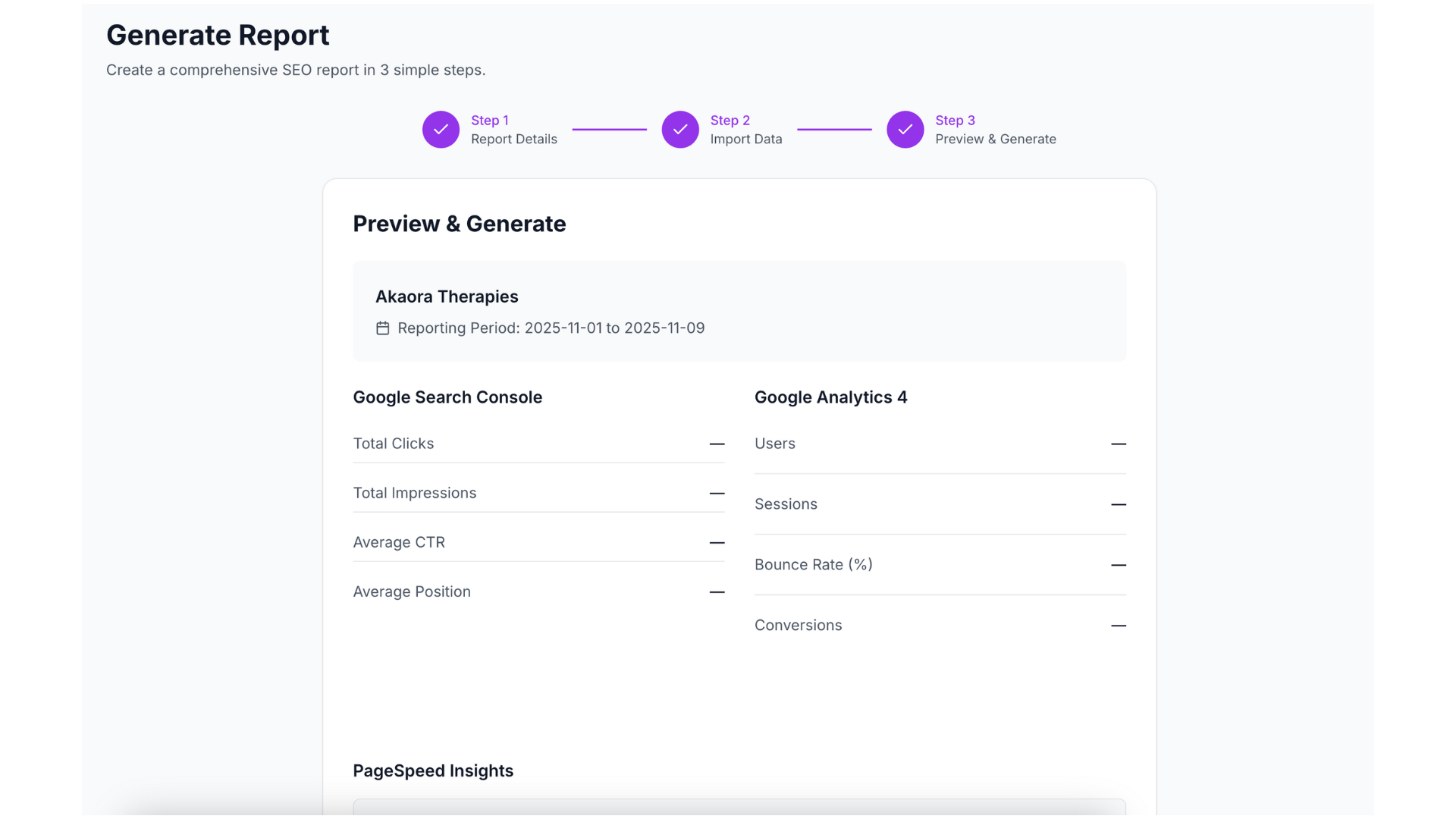
Click "Generate Report" and watch the progress indicator. Behind the scenes, Reportr is: 1. Fetching data from Google Search Console API 2. Pulling analytics from GA4 API 3. Running PageSpeed Insights analysis 4. Processing and formatting all data 5. Generating your branded PDF
Processing time: 30-90 seconds depending on data volume.
Stop wasting 8+ hours on manual reports. Reportr generates beautiful, white-label SEO reports in about a minute.
Step 5: Download and Deliver Your Report
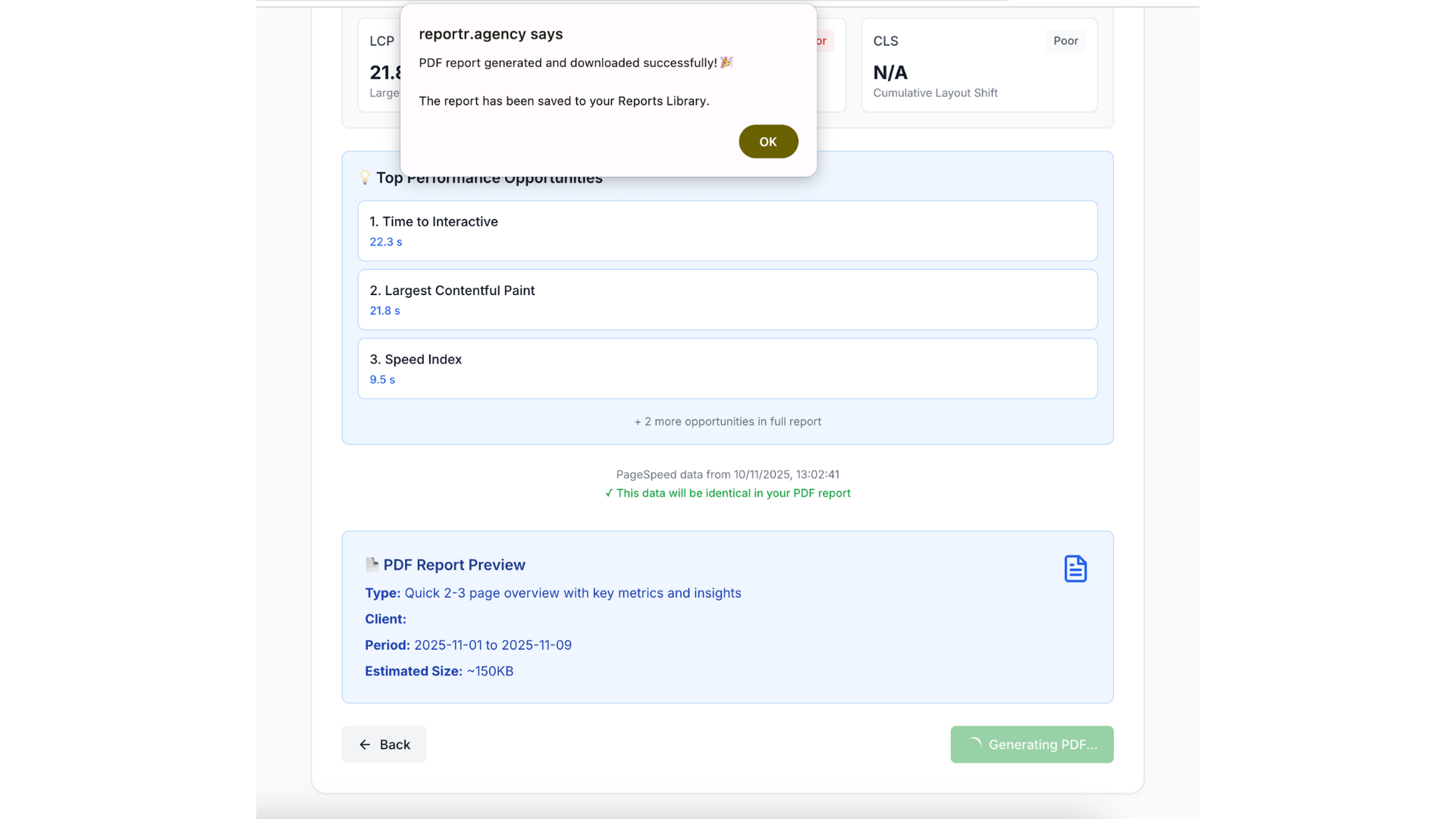
Once generation completes, your professional SEO report is ready: 1. Click "Download PDF" 2. Report opens in a new tab or downloads automatically 3. Review the report before sending to your client 4. Deliver via email, client portal, or your preferred method
What's Inside Your Report:
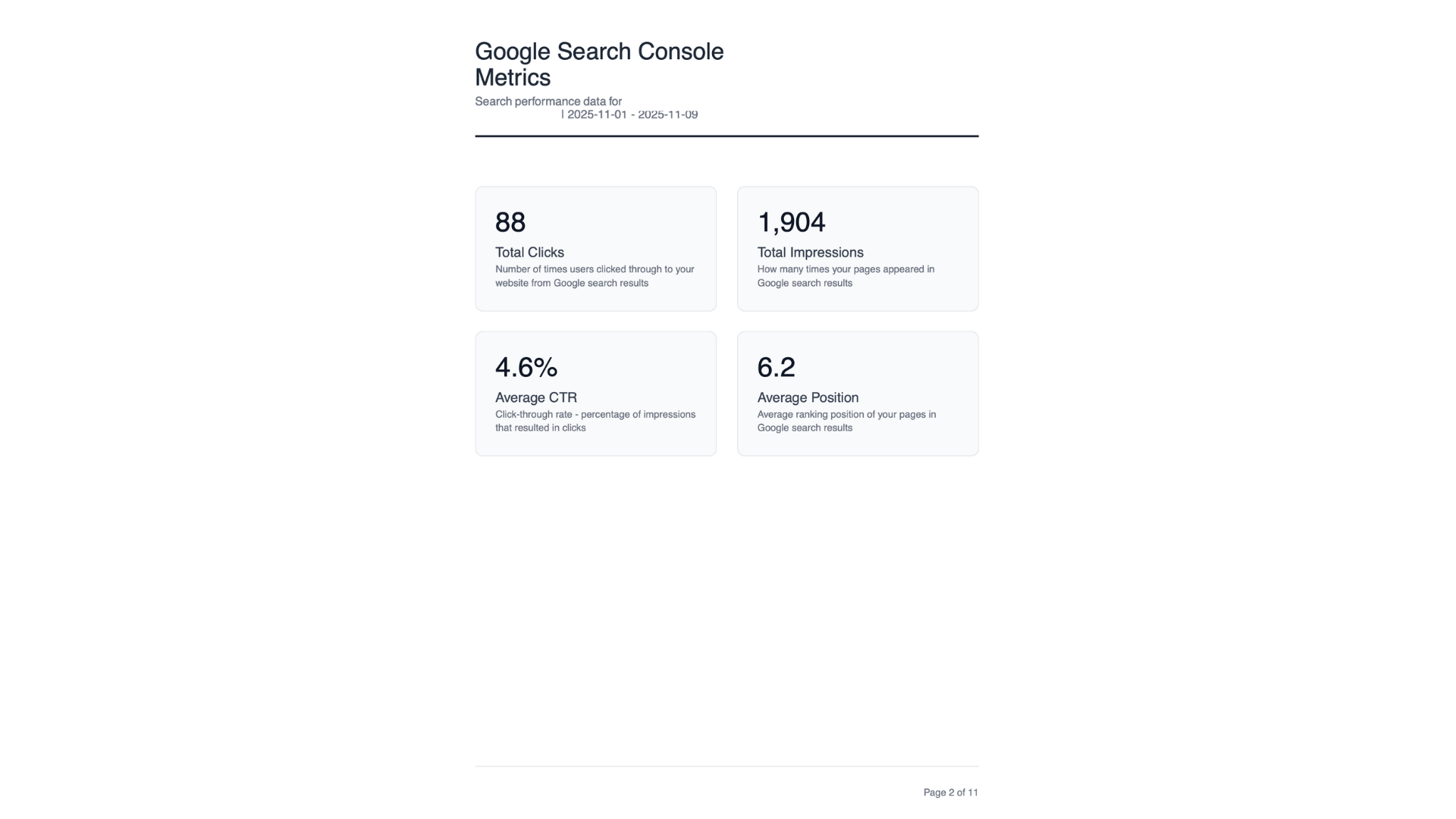
Executive Summary Page shows high-level metrics at a glance:
- •Your agency logo and branding (if white-label enabled)
- •Total clicks with % change vs. previous period
- •Total impressions and average position
- •Organic sessions from GA4
- •Mobile and desktop PageSpeed scores
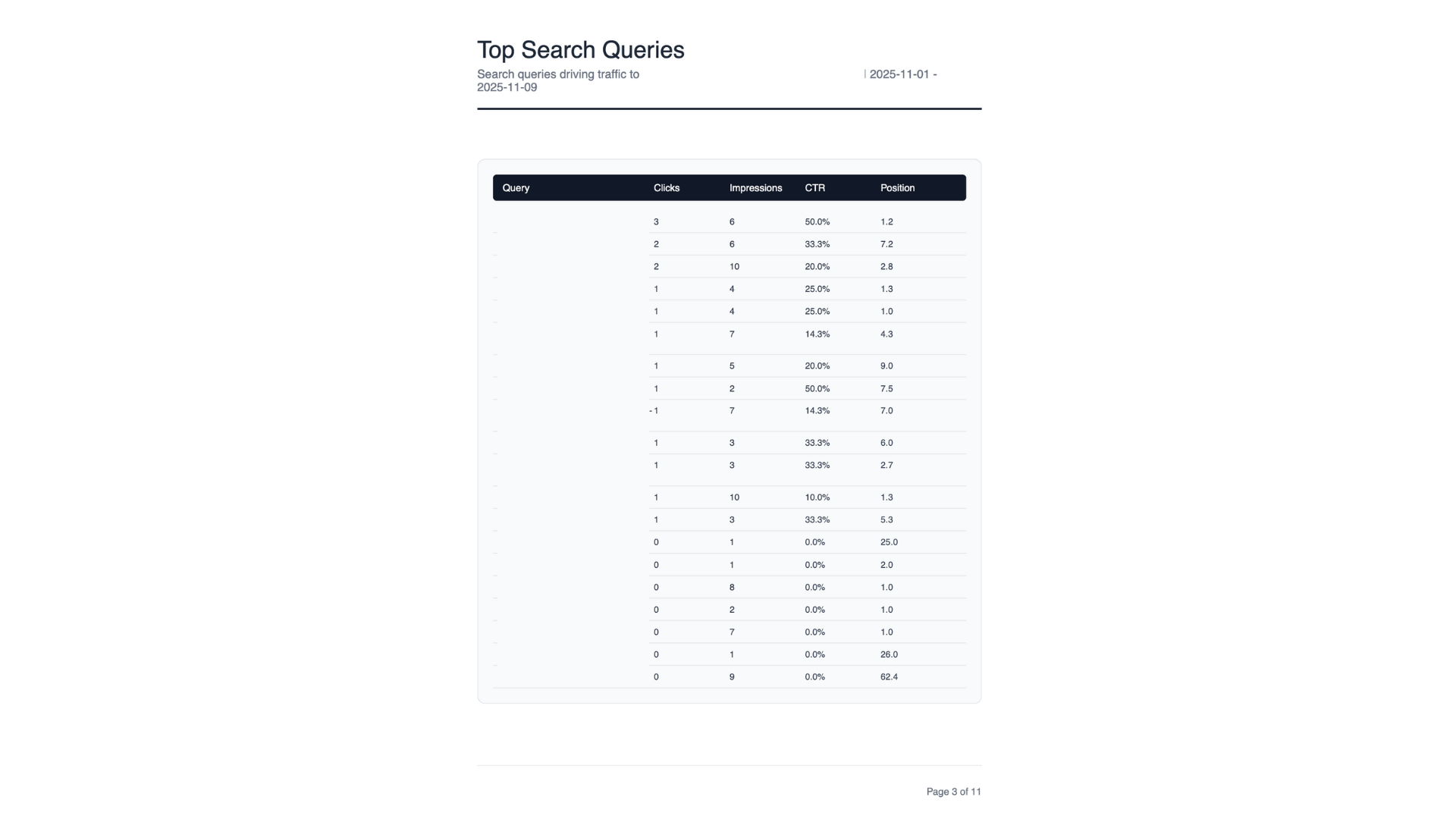
Keyword Performance Table displays:
- •Top 20 keywords ranked by impressions
- •Current position for each keyword
- •Clicks and CTR per keyword
- •Easy-to-scan table format
Top Pages Analysis includes:
- •Top 10 landing pages from organic search
- •Clicks and impressions per page
- •Average position
- •Identifies which content drives traffic
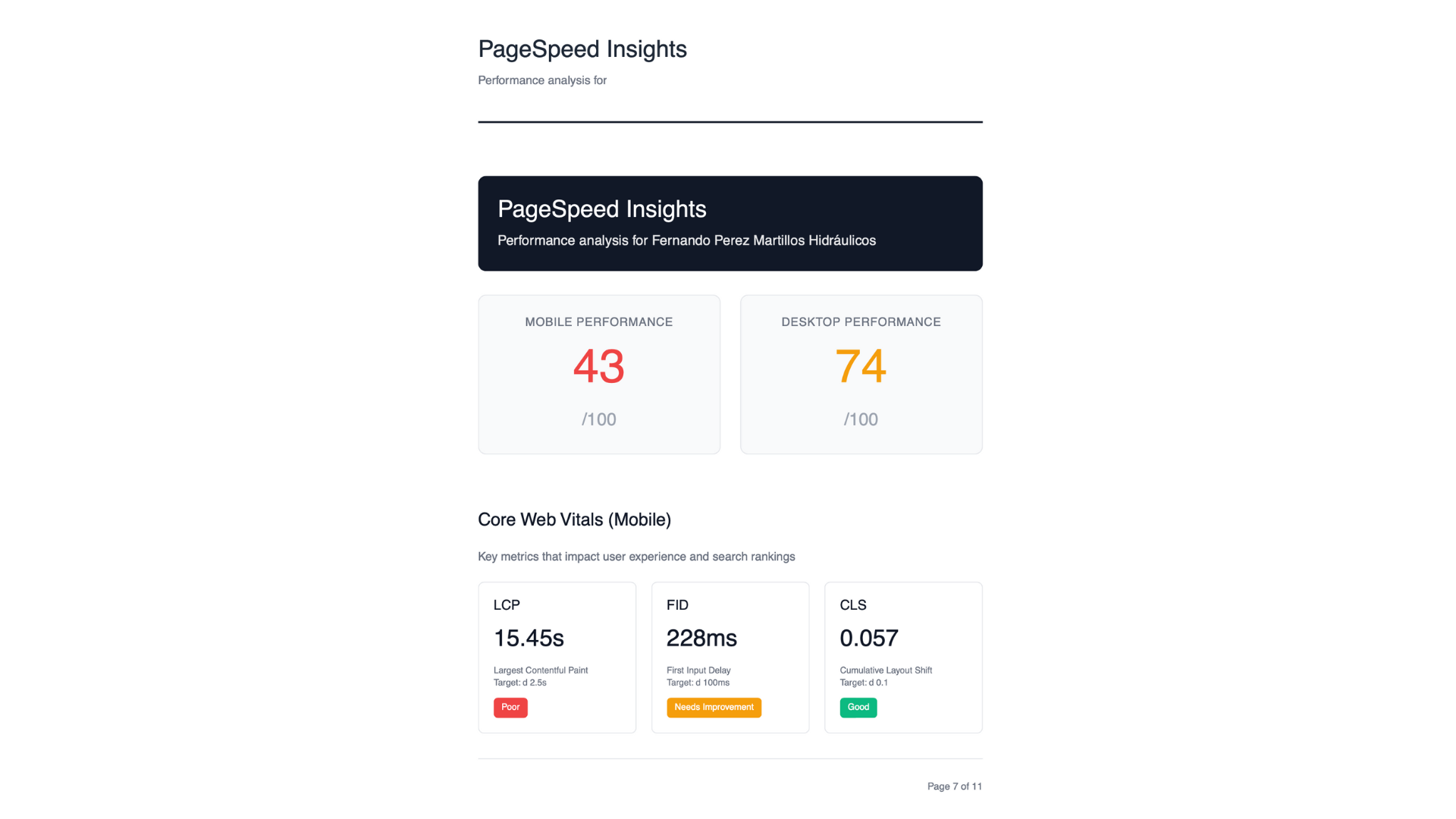
PageSpeed Insights Section shows:
- •Mobile and desktop performance scores
- •Core Web Vitals metrics (LCP, FID, CLS)
- •Top 5 performance opportunities
- •Estimated time savings for fixes
Traffic Trends Chart visualizes:
- •30-day impression and click trends
- •Daily data points showing growth trajectory
- •Visual representation of progress
With white-label enabled, clients see only your agency branding – no mention of Reportr anywhere in the report. Without white-label, reports include a small "Powered by Reportr" badge in the footer.
Time Saved: The Real ROI
Let's compare manual reporting to Reportr automation:
Manual Reporting Process:
- •Log into Google Search Console: 2 minutes
- •Export keyword data to spreadsheet: 5 minutes
- •Log into Google Analytics 4: 2 minutes
- •Export traffic data: 5 minutes
- •Run PageSpeed Insights manually: 3 minutes
- •Create document template: 10 minutes
- •Format tables and charts: 30 minutes
- •Add branding and styling: 20 minutes
- •Proofread and quality check: 10 minutes
Total manual time: ~90 minutes per client
Reportr Automated Reporting:
- •Add client (one-time): 2 minutes
- •Generate report: about a minute
- •Quick review: 2 minutes
Total automated time: ~3 minutes per client
Time saved per client: 87 minutes (1.5 hours)
For an agency with 10 clients:
- •Manual: 15 hours per month
- •Automated: 30 minutes per month
- •Monthly time savings: 14.5 hours
At a conservative $100/hour rate, that's $1,450 in monthly value from a tool that costs $29-199/month depending on your plan. The ROI is undeniable.
See exactly how agencies save time with our white-label SEO pricing guide.
Frequently Asked Questions
How long does initial setup take?
Most agencies complete full setup in 3-5 minutes after account creation. Adding each additional client takes about 2 minutes. The Reportr interface is designed for immediate productivity without steep learning curves.
Do I need technical skills to use Reportr?
No. If you can log into Google Search Console, you can use Reportr. Everything is point-and-click with no coding or API configuration required. Our how it works page shows the complete process visually.
Can I customize what metrics appear in reports?
Yes! The Custom Report type lets you select specific GSC, GA4, and PageSpeed metrics to include. This feature is available on all plan tiers, including the FREE plan. You can mix and match data sources based on client needs.
What if my client has multiple websites?
Add each website as a separate client in Reportr. Each gets its own reports and data tracking. Our PROFESSIONAL and AGENCY plans support 15 and 50 clients respectively.
How often should I generate reports for clients?
Most agencies generate monthly reports at the end of each billing cycle. Reportr has no restrictions on generation frequency – create daily reports if needed (within your plan's monthly report limit).
Can clients access reports directly?
No, Reportr is designed for freelancers and agencies who download PDFs and send them directly to clients. This gives you full control over when and how reports are delivered, maintaining your position as the expert consultant.
Next Steps After Setup
Now that you've completed the white label seo reports setup and generated your first report, here's how to maximize Reportr:
- •Add remaining clients (up to your plan limit)
- •Schedule monthly reporting – Set calendar reminders for the 1st of each month
- •Customize white-label branding (included in all paid plans)
- •Create email templates for consistent report delivery
- •Set up team access (share login with team members)
Want to scale your agency reporting? Compare our plans:
- •STARTER: $29/month for 5 clients, 25 reports
- •PROFESSIONAL: $99/month for 15 clients, 75 reports
- •AGENCY: $99/month for 50 clients, 250 reports
All plans include unlimited report generation within the monthly limits, white-label option, and priority support on Professional and Enterprise tiers.
Explore advanced features on our features page or see detailed comparisons with other tools in our comprehensive white label SEO reporting guide.
Ready to transform your SEO reporting? Join agencies that have cut reporting time by 95% and improved client retention by 64%.
Conclusion
Setting up professional SEO reporting doesn't require hours of technical configuration or expensive developer time. With Reportr, you can go from account creation to your first branded report in under 5 minutes.
The white label seo reports setup process is straightforward:
- •Sign up with Google OAuth (60 seconds)
- •Add your agency branding (2 minutes)
- •Connect client's GSC, GA4, and PageSpeed data (2 minutes)
- •Generate professional report (about a minute)
- •Download and deliver (1 minute)
Total time: Under 5 minutes
For agencies tired of spending 8+ hours monthly on manual reporting, Reportr delivers immediate ROI. You'll save 14+ hours per month (for a 10-client agency) while improving report quality and client satisfaction.
The best part? You can start completely free with 1 client and 5 monthly reports. No setup fees required. Test the platform, generate real reports for a client, and upgrade only when you're ready to scale.
Ready to transform your agency reporting? Create your free account in 60 seconds and generate your first report today.